
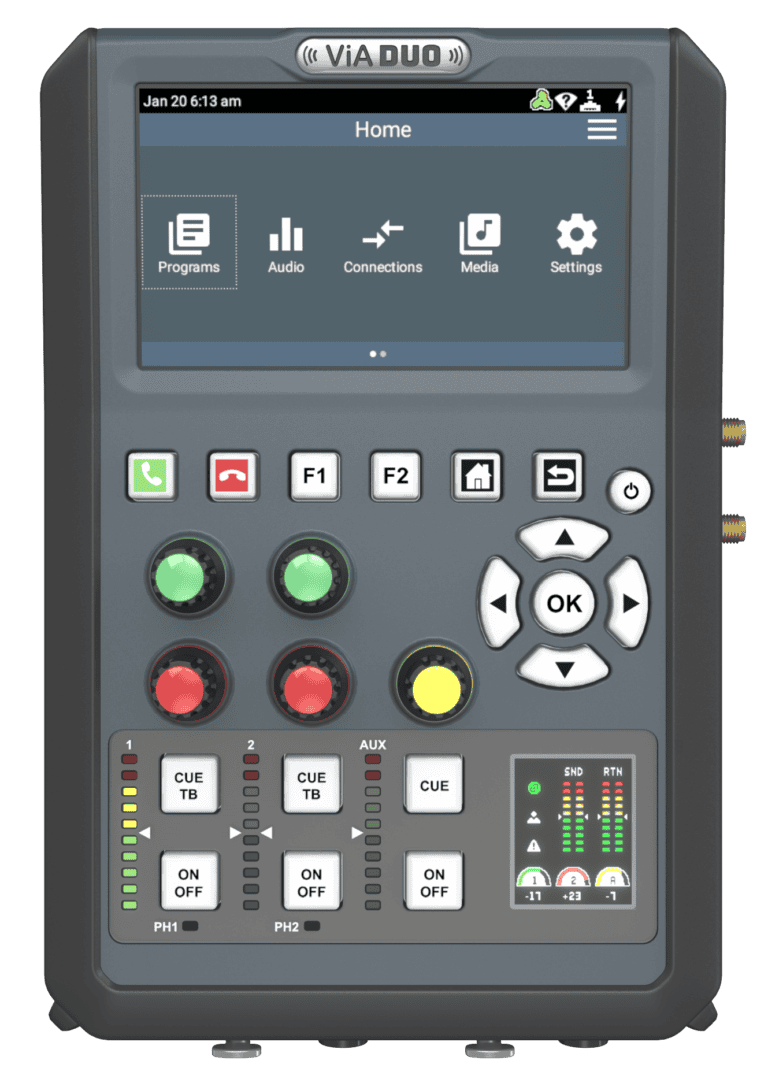
Latest Firmware
Important
The Firmware for the Bridge-IT II and Bridge-IT XTRA II uses the same download file.
Firmware Release Notes
resources
Tech Notes
FAQs
- Check if there is a SIM lock on the modem that requires a PIN code. This can be disabled in the codec via Settings > Network > USB > SIM PIN, or by putting the modem’s SIM card into a phone and turning this setting off. Consult your mobile carrier for these instructions.
- Check if your modem is set to automatically connect. This is usually done through a software client setting on a laptop/desktop computer. Configure the modem to manually connect instead. Consult your mobile carrier for instructions.
- Sometimes a cellular network will be detected and a USB modem will connect automatically after it is inserted. Tieline recommends always enabling an APN (Access Point Number) and entering the correct APN for your Telco. This ensures use of the correct data APN. It is usually simple to search the internet for the correct APNs used by each Telco.
- Check with your carrier to see if different APN settings are needed based on using a pre-paid versus a post-paid mobile broadband account. Custom APN settings can be configured in the codec as required.
- Ensure the authentication type is correctly configured.
- Visit https://tieline.com/via-usb-modem-compatibility-list/ to view a list of compatible USB modems.
You can make IP connections to a different codec brand, e.g. Comrex, if the SIP protocol is used on codecs at both ends and the codec you are connecting to is EBU N/ACIP Tech 3326 compliant. You can start by configuring the most commonly used settings on both codecs as follows:
- Profile mono
- Bit rate 64k
- Algorithm G.722
- Session port 5060 UDP
- Audio port 5004 UDP
On newer firmware versions of Bridge-IT, Merlin, and Genie codecs the SIP Interface needs to be enabled first. There are two options to configure this:
- Using the Toolbox HTML 5 GUI select Transport > SIP Interfaces and select the Enable check-box, then click Save.
- Using the codec front panel press the Settings button and select SIP >Interfaces > SIP1 or SIP2 > Enable.
Note: The codec user manual has more information on connecting using SIP and using SIP servers. Alternatively, for more info see the codec Compatibility document under Tech Notes on the Support page for your codec at www.tieline.com.
- Download the Acer USB Ethernet/RNDIS driver
- extract the file to your PC
- right click and install the .inf file
Can't Find what you are looking for?
- All trademarks mentioned belong to their respective owners and are used for reference only
- Errors and Omissions Excepted
- All information is subject to change without notice.