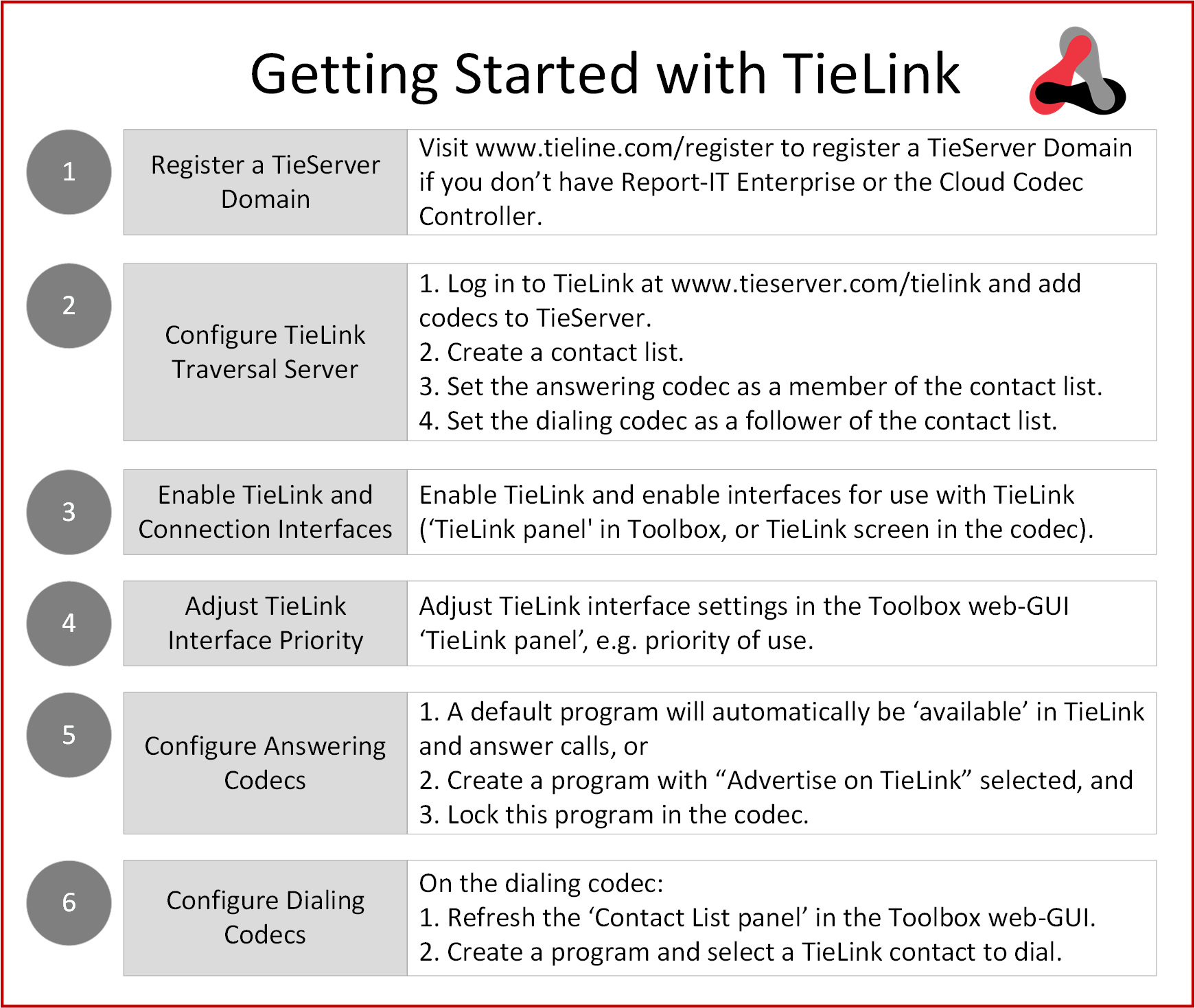
TieLink operates over most* wired and wireless IP networks and is as simple as making a phone call to get connected. The TieLink Traversal Server is supported in Gateway, Gateway 4, Bridge-IT II, Bridge-IT XTRA II, Genie, Merlin and ViA codecs. TieLink is not supported in Bridge-IT, Bridge-IT XTRA, the MPX I and MPX II. The following needs to be configured before TieLink connections can be created.
*Excludes some types of NATs and some combinations of NAT types.
Getting Started
Codecs need to be enabled for TieLink operation and by default this is disabled. To enable TieLink functionality in your codecs:
1.Register a TieServer domain (more details follow).
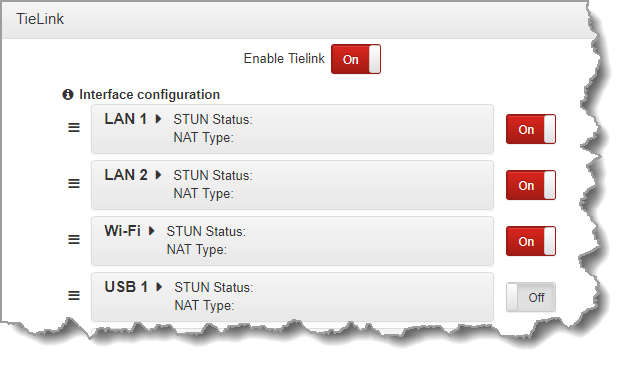
2.Open the ToolBox HTML Web-GUI in codecs to be registered and select Transport in the Menu Bar, then click TieLink to open the TieLink panel. Next, select Edit > Enable TieLink [ON] and enable the interfaces used to connect, and click Save. This enables interfaces for communicating with TieServer and facilitating TieLink connections. Note: See the user manual for each codec for more detail about how to configure connections using TieLink.
3.Add codecs into the TieLink Traversal Server.
4.Create Contact lists and add codecs to contact lists.
5.Configure compatible programs that allow codecs to take advantage of contact lists created in TieLink. Note: Ad hoc dials can also be created using TieLink.
|
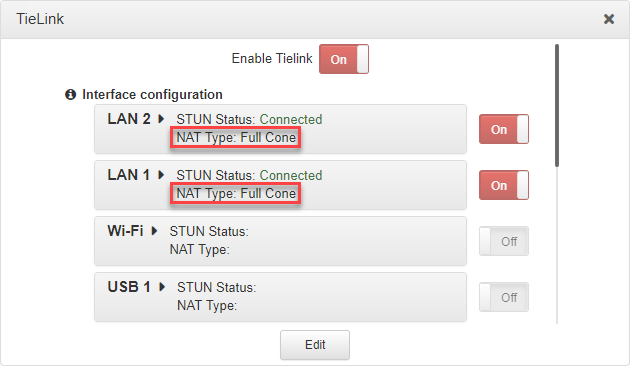
Important Notes: •Verify the NAT Type on each codec for the interface/s being used for the connection. This is displayed in the TieLink panel in the Toolbox HTML Web-GUI for each codec. Some combinations of Symmetric and port restricted NATs may not be traversable. For example, two codecs behind different symmetric NATs will never connect. If this is the case, Tieline recommends connecting in a more traditional peer-to-peer manner using port forwarding techniques.
•Select Advertise on TieLink when creating a program with the ToolBox Web-GUI to display answering audio streams. This provides the ability to include and exclude answering audio streams on codecs. As an example, on a Merlin PLUS it is possible to create a 6 x Mono answering program and only select Advertise on TieLink on a subset of fewer than 6 audio streams. This means only the subset of 'advertised' audio streams will be displayed as available answering connections in TieLink. |

Register and Log in to a TieServer Domain
To get started with TieLink requires a unique TieServer Domain. If you have an existing TieServer domain from using Report-IT or the Cloud Codec Controller, you can use this domain and add new codecs using TieLink or the TieServer Console (see Login and Add and Remove Codecs). If you have not previously registered a Tieserver domain:
1.Register via www.tieline.com/register
2.Tieline will then create a unique and secure TieServer domain for your network and send login credentials.
3.Enter domain credentials into the TieLink web-browser login page at https://tieserver.com/tielink to view and manage all codecs in TieLink.