A TieLink contact list specifies which codecs are included in a contact list group displayed on a codec and which codecs in the group will 'follow' that contact list.
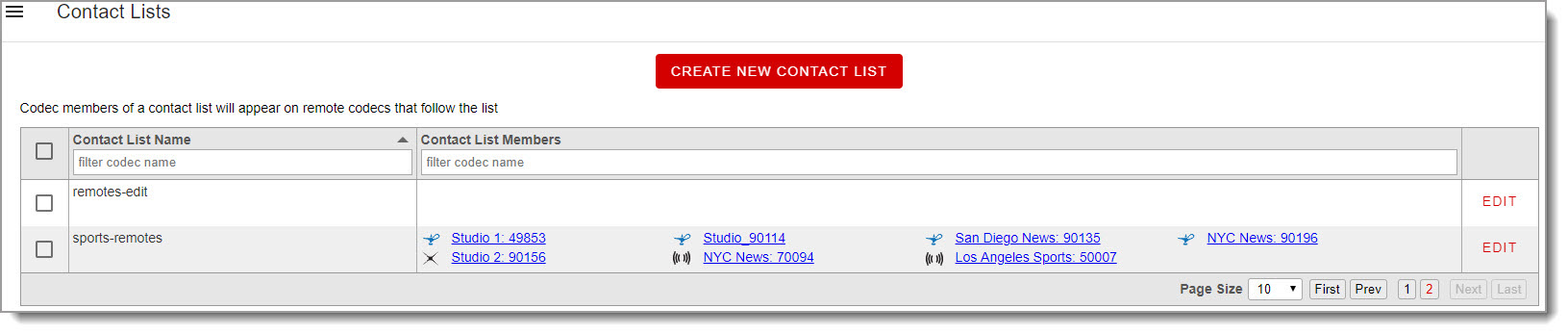
For example, a codec contact list used for live news remotes may include several studio codecs in different cities as 'followers.' This means the remote codec can easily dial each destination, or studio contact list followers can also dial the remote codec if required. Features displayed in the Contact Lists screen include:
•Name: The name of the list, e.g. News Remote NYC.
•Contact List Members: Followers of this contact list, e.g. a remote news codec in NYC and studio codecs in different cities.
Creating a New Contact List
When creating a contact list it is possible to configure:
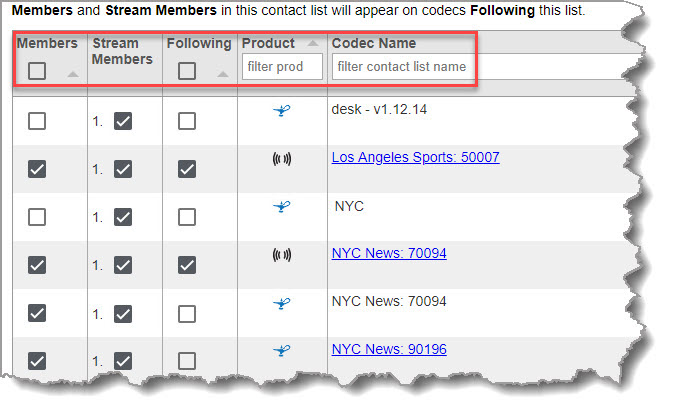
•Members: All members (codecs) of a contact list.
•Stream Members: Select streams on multi-stream codecs that will be members of a contact list. Click the Cross symbol to expand and view all streams. Note: Shared codecs from other domains may only allow a subset of Stream Members to be selected.
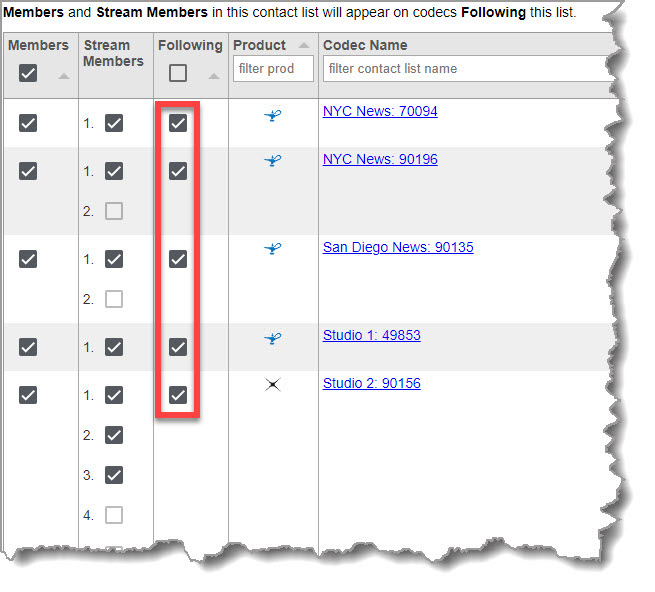
•Following: Followers can see all Members and Stream Members in a contact list.
•Product: The type of codec, e.g. Genie, ViA or Merlin.
•Codec Name: Displays the name of all codecs registered to the domain, or shared with the domain. Note: Shared codecs can be identified as they cannot be accessed by clicking on the Codec Name.
To add a new contact list:
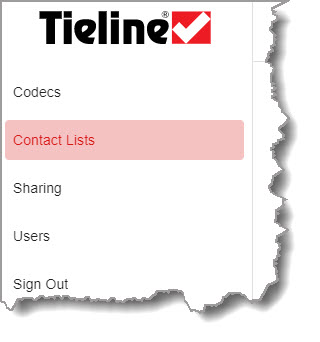
1.Click to select Contact Lists.
2.Click the Create New Contact List  button.
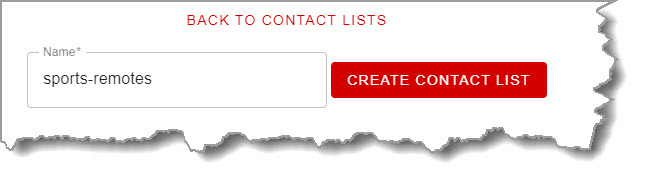
3.Enter a contact list Name, then click Create Contact List  . Note: Spaces are not allowed in a contact list name.
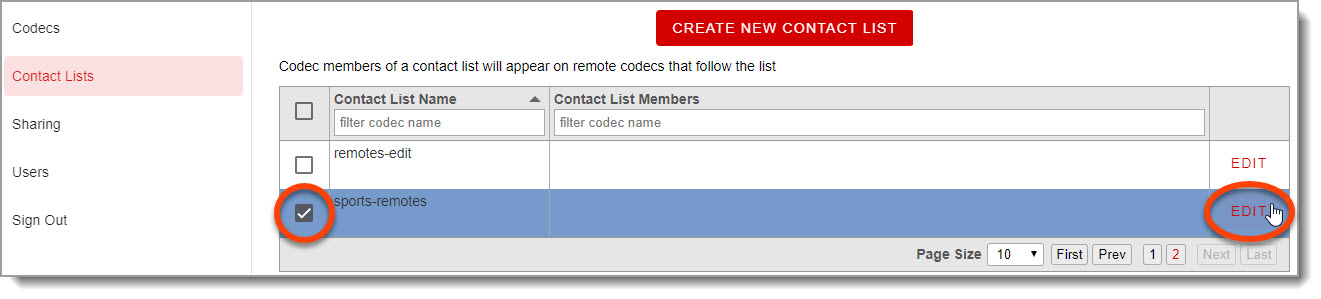
The new contact list is created and displayed in the Contact Lists screen.
Adding Codecs to a Contact List
1.Click to select a contact list, then click Edit.
2.Click the Members check-boxes to select which codecs are members of the contact list. By default all audio streams are selected as Stream Members of the contact list. Click Stream Members check-boxes to remove streams from a contact list. Note: If Stream Members are deselected, it is necessary to deselect the Members check-box for a codec and then reselect it to add all stream members back.
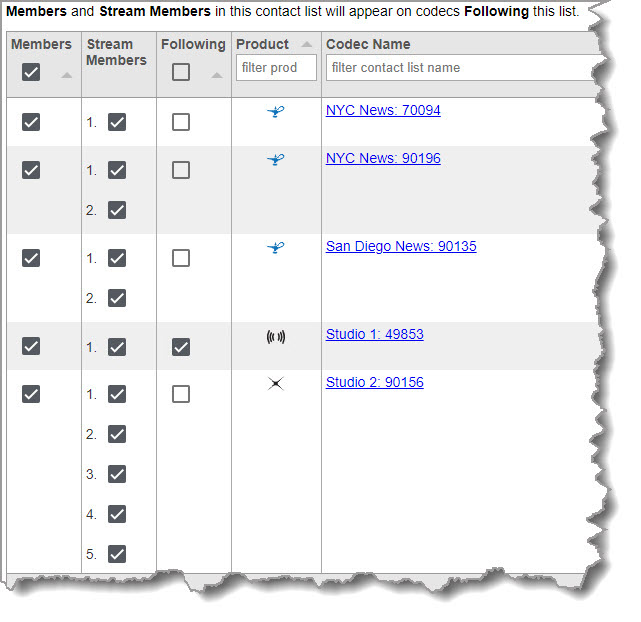
3.Select codecs Following the contact list. Follower codecs can see all Members and Stream Members in a Contact List. This makes it simple for each follower codec to:
a.Know when destination codecs are available, and
b.Dial and connect.
4.Click Save to store all new settings. View a summary of Contact List Members on the main Contact List screen.
Removing Contact Lists
1.Click to select a contact list to delete in Contact Lists.
2.Click Delete Selected Lists  .
.