|
Helpful Hints for TroubleshootingIf TieLink Does Not Connect: 1.Ensure TieLink and at least one relevant interface is enabled and 'stunned' on both codecs; i.e. the STUN Status for the interface is Connected. 2.Check STUN server settings.
If a TieLink Fuse-IP Connection Does Not Connect: 1.Ensure Fuse-IP is enabled in the TieLink panel in Toolbox, or in the codec's TieLink Settings screen, for both the dialing and answering codecs 2.Check at least one interface has been added to the Fuse-IP configuration in the TieLink panel in Toolbox, or in the codec's TieLink Settings screen, for both the dialing and answering codecs 3.Verify that the STUN Status for at least one interface in the Fuse-IP configuration is Connected on both the answering and dialing codecs. 4.Check that the answering codec is not already connected using TieLink Fuse-IP. Only one Fuse-IP connection is currently supported.
If SmartStream PLUS Connections do not connect: 1.Based on the priority order of interfaces in the TieLink panel, a SmartStream PLUS connection may automatically use TieLink Fuse-IP as one of the connections if Fuse-IP is enabled at the dialing or answering codec. If TieLink Fuse-IP is chosen, then that connection will only succeed if the Fuse-IP stream is available at both ends. Disable Fuse-IP as an interface in TieLink to avoid Fuse-IP being selected in this scenario. 2.When "Discrete once only" or "Discrete recurring" is selected, with TieLink Fuse-IP enabled, TieLink Fuse-IP may be selected to transmit one of the streams. In this situation, if the answering codec is already connected to another codec using TieLink Fuse-IP, then the connection will fail for this stream because only one Fuse-IP connection is supported using TieLink. 3.When "First Available" is selected, TieLink Fuse-IP may be used if it is the first interface "ready" in the TieLink panel interface list. In this situation, the connection will fail if the answering codec is already connected to another codec using TieLink Fuse-IP.
Configuration Restrictions for TieLink TieLink only supports one SmartStream PLUS redundant streaming connection on each audio stream. TieLink also does not support uncompressed PCM connections, or encoding using aptX Enhanced, G.711 or G.722. |

Why isn't my codec 'available' within TieLink?
By default TieLink is disabled in a codec and needs to be enabled before it is 'available' in the Traversal Server. To enable this on a codec using the ToolBox Web-GUI:
1.Open the HTML5 Toolbox Web-GUI and click Transport in the Menu Bar, then click TieLink to open the TieLink panel.
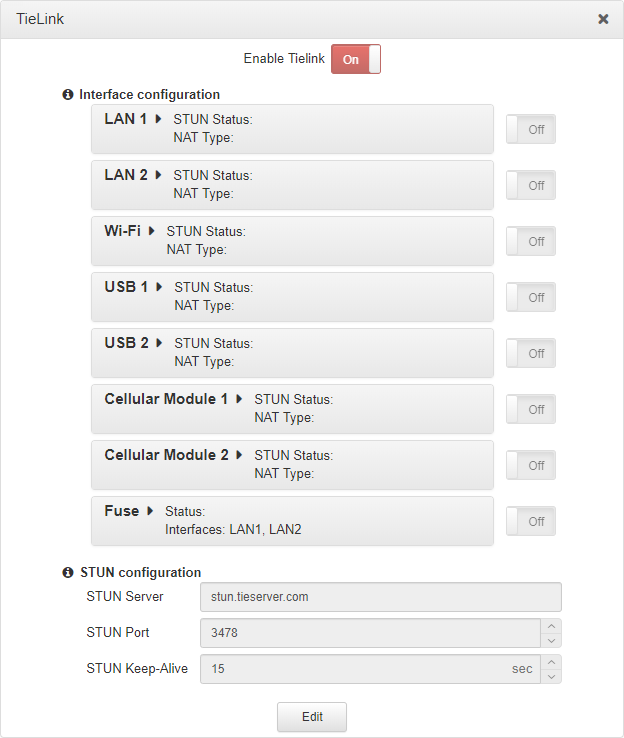
2.Click Edit and ensure Enable TieLink is On, then click to select On/Off buttons and enable required interfaces.
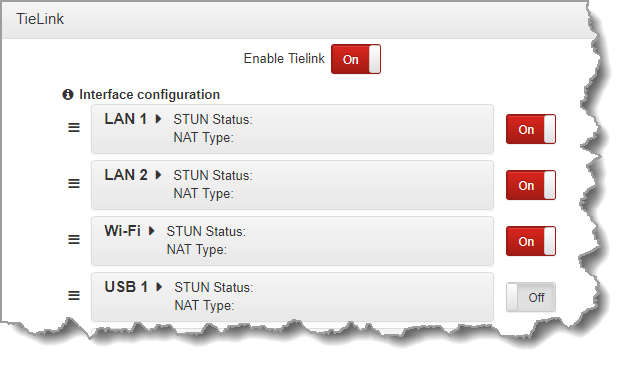
3.Click Save.
|
Important Note: Ensure that the DNS Server settings are also configured because the codec must be able to resolve with Tieline’s various TieLink servers in order to be able to contact them. The codec user manual has more information about configuring this. |

Why can’t two registered Tieline codecs in TieLink connect?
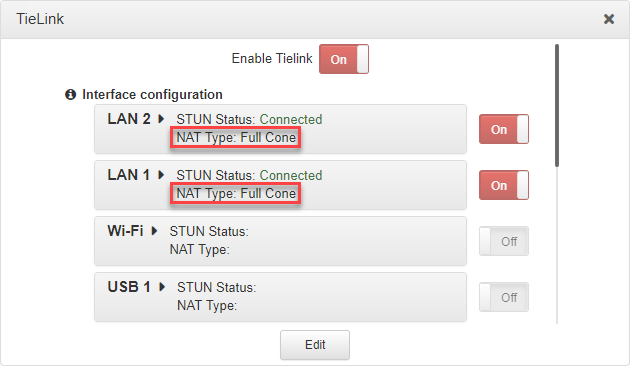
First, verify the NAT Type on each codec for the interface/s being used for the connection. This is displayed in the TieLink panel in the Toolbox HTML Web-GUI for each codec. Some combinations of Symmetric and port restricted NATs may not be traversable. For example, two codecs behind different symmetric NATs will never connect. If this is the case, Tieline recommends connecting in a more traditional peer-to-peer manner using port forwarding techniques.
What are the reasons why audio streams may appear 'Offline'?
When an audio stream is Offline it is unavailable within the TieLink Traversal Server Network. Possible reasons an audio stream may be offline include:
1.The codec is offline.
2.An audio stream is not advertised on TieLink.
3.TieLink and/or TieLink interfaces are disabled in the codec.
4.Ports are not open.
5.The Contact List panel in the Toolbox Web-GUI may need 'refreshing'.
6.DNS - Not resolving the STUN server set in the TieLink panel. Note: If a codec has a statically configured IP address, ensure that DNS Server settings are also configured.
7.DNS - Not resolving https://tieserver.com
8.The codec firmware version is not compatible.
Do I Need to Open Ports to use TieLink?
UDP ports can be used for both the outgoing and incoming ports when using TieLink. The codec will treat the port range configuration as a pool of ports to be used. The actual allocation can appear to be in order, but this is not guaranteed. Users should assume that the allocation may be random.
The default ports for TieLink connections are UDP ports 5100 – 5120. Most of the time Telcos will not block these ports, but it is possible they may in some regions. Ensure that any LAN or cellular network being used allows UDP traffic on these ports, or if the default ports are changed, the ports which have been configured for use. Tielink uses default TCP ports 9002 and 9012 for Tielink connection initiation between the codecs, but a router/firewall is not involved. When Tielink is used, a tunnel is created between the codecs and router ports specifically are not important, because the port data is contained within the tunnel. We don't usually recommend changing these ports, and most customers successfully using Tielink are using these default TCP ports for connecting multiple codec connections successfully. We recommend that you keep the default settings as it will be problematic trying to add many port numbers for multiple codecs, when just using the defaults is fine. The same TCP port/s can be used for multiple codecs creating Tielink connections.
If you are using stun.tieserver.com for STUN we recommend opening firewall ports UDP 3478 and 3479, because the server gives the 3479 port address to the client for symmetric NAT detection. Different STUN servers may provide a different port and IP address. STUN messages are sent via UDP and STUN port 3478 refers to the STUN server configuration and not the local system (codec). In a general sense, the way STUN works is that the codec will pick a local port (e.g. any port in the range 5100-5170), and then send a UDP message to the server's port 3478. In compatible NAT, this will create a mapping between the local address/port and the external address/port. The server will receive the message as coming from the external address/port and send a message back through the same address/port to let the codec know that the mapping has been successful (i.e. a hole/path was formed). The codec can now advertise this external address/port mapping to reach the codec through NAT. TCP is not used during this process. Note: The codec will also need to send/receive TCP packets to codeclounge.com port 443. This is used to coordinate connection establishment.
When using TieLink and SmartStream PLUS, if you want to configure redundancy between say LAN1 and LAN2, the port range can be the same or different.
What are the Configuration Restrictions for TieLink?
Tielink only supports one SmartStream PLUS redundant streaming connection on each audio stream. TieLink also does not support uncompressed PCM connections, or encoding using aptX Enhanced, G.711 or G.722.
I reset factory defaults in my codec and now TieLink connections aren't working.
When you reset factory defaults in a codec TieLink is disabled. This can be re-enabled using the codec front panel or the Toolbox HTML Web-GUI connected to a codec. See the codec user manual for more details.
How do I add Stream Members back into a Contact List after deselecting them?
If Stream Members have been removed from a contact list, it is necessary to deselect the Members check-box for a codec and then reselect it to add all stream members back.
How do I add shared streams to an external TieLink domain after they have been deselected?
If a codec is shared with an external TieLink domain, and streams have been deselected, it is necessary to Remove the codec and then share it with the external TieLink domain again to re-enable all audio streams.
I loaded a multistream answering program on a codec but not all streams are available in Tielink?
When you load a multistream answering program enabled for Tielink connections it must be locked in the codec so it cannot be unloaded by the first incoming call. TieLink may only show one available answering stream if a multistream program is not locked in the codec.To lock a program in the answering codec:
1.Open the HTML5 Toolbox Web-GUI and click Settings at the top of the screen, then click Options to display the Options panel.
2.Select System and click Edit.
3.Click the Lock Loaded User Program check-box to lock or unlock a user program in the codec, then click Save.